Displaying Media from a File Server
[!SUMMARY] This page explains how to:
- Use the
CSVMediaBoothprefab to display server stored media with ease- Use a CSV file format to manage multiple remote media
Prepare CSV file on file-server
- Download target Excel File
- Open .xlsx in any other software than Excel (see remark)
- Transfer media and thumbnails to any accessible file-server
- Replace paths in excel file with the links to the file-server
- Export as CSV with UTF-8 encoding
Warning
Opening/Exporting the files in Excel will render the files unusable for Anywhere Academy, because Microsoft uses it's own proprietary export codec.
The developers of Anywhere Academy decided not to support this.
We advise using open source tools such as OnlyOffice or Libre Office. Opening in Google Docs is also an option.
Note
Member of the LFI team?
Opening the Excel files in HydroCloud allows to handle and export the files with ease.
Couple with Anywhere Academy
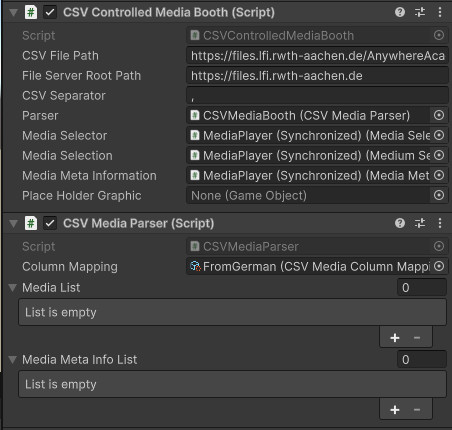
- Place an instance of
CSVMediaBooth.prefabin your scene - Adjust heading and logo at the top as needed.
- Change file server root and csv path in the inspector.
- Adjust separator if needed.
- Check column mapping in the
CSV Media Parsercomponent. - That's it, the media should now load on start up.
CSV Media Parser
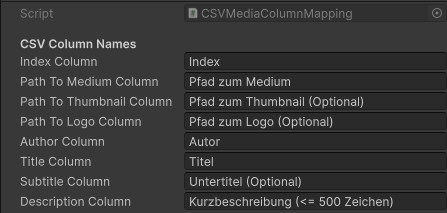
The CSV Media Parser Component reads a CSV file and creates a list of type Medium which is passed to the Media Display System. To handle different table formats, it uses a column mapping. The following fields must be provided and mapped with a column mapping:
- Index Column
- Path To Medium (public path to file on your file server)
- Path To Thumbnail (optional*)
- Path To Logo (optional*)
- Author
- Title
- Subtitle (optional*)
- Description (Up to 500 characters**)
*: Although not all columns are needed by the system, they need to be provided in the column mapping and should be part of the CSV file.
**: The UI display only has limited space for up to 500 characters.
An example mapping for a German CSV can be found below: